Choosing a desk lamp for a monitor is not simply a matter of style or brightness. The real question is how to choose a lamp that doesn't glare on screens while still making paperwork comfortable. One poorly shielded bulb can create a bright reflection across a dark display, like a small window floating over your text. The Vision Council’s Eyes Overexposed: The Digital Device Dilemma report found that 65% of surveyed Americans experienced digital eye strain symptoms. That figure does not prove that glare is the only cause. It does show why screen lighting deserves careful attention. As lighting researcher Peter Boyce writes in Human Factors in Lighting, “Glare is a subjective sensation.” His point matters. Glare depends on contrast, viewing angle, surface reflection, and adaptation—not brightness alone.
This guide examines practical choices, including fully shaded lamps, adjustable arms, diffused LED panels, and low-reflectance finishes. It also considers color temperature, dimming control, and placement beside the screen. The Illuminating Engineering Society and CIE guidance both emphasize controlling excessive luminance contrast in interior spaces. A lamp positioned 30 to 45 degrees from the monitor may reduce direct reflections. Yet every desk behaves differently. A glossy black screen, white wall, or bright window can change the result within minutes. Matte shades often help, but they are not magic. Even a premium lamp can glare when aimed at the display. Small tests matter: tilt the lamp, lower its output, and check the screen from your normal sitting position. The best choice is usually the lamp you barely notice.
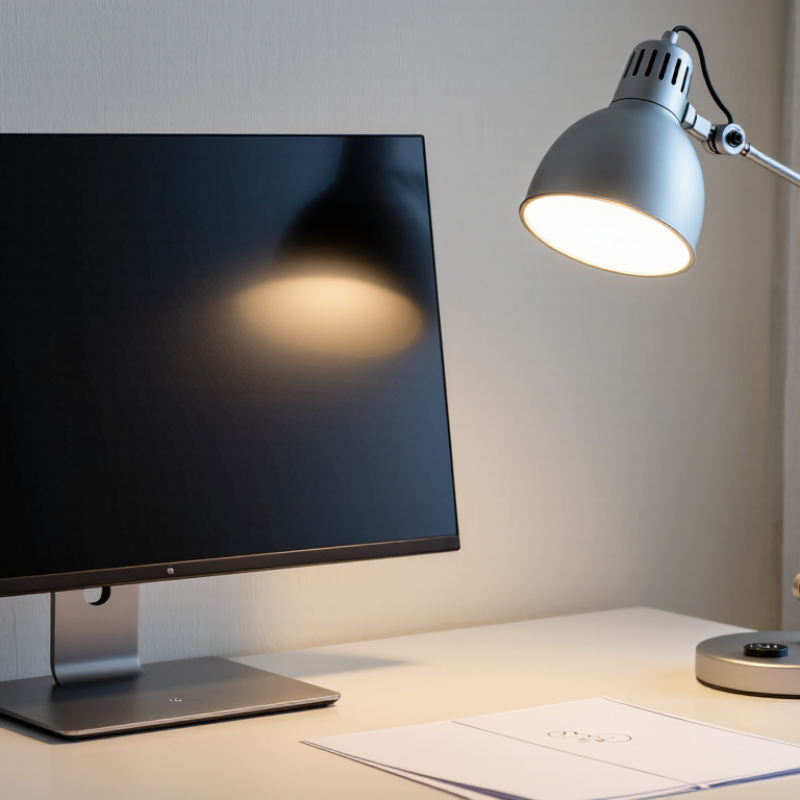
Understanding Why Some Lamps Glare on Screens
How to Choose a Lamp That Does Not Glare on Screens?
Understanding Why Some Lamps Glare on Screens
Screen glare usually comes from reflected light, not from brightness alone. A lamp shines toward the display, and the glass surface sends that light back to your eyes. Glossy screens create sharper reflections. Matte screens soften them, but they cannot remove glare completely.
The angle matters greatly. I once placed a desk lamp beside my monitor, believing the side position was safe. A bright oval reflection appeared near the text. My first fix was wrong. Lowering the lamp helped, but moving it behind my shoulder worked better. Keep the lamp outside the screen’s reflection path. Shielded shades also reduce direct light entering your eyes.
Brightness contrast creates another problem. A dim room beside a bright screen can cause visual discomfort, even without a visible reflection. Choose a lamp with adjustable output and aim the light toward your desk, not the display. Diffused light is usually gentler than a bare exposed bulb. A neutral color temperature can support comfortable reading, though personal preference still matters.
Check the screen from your normal sitting position. Tilt the display slightly, then move the lamp in small steps. Look for pale patches, doubled text, or moving reflections. These signs are easy to miss during daytime testing. I still find some lamps comfortable for writing but distracting during evening video calls. The best choice depends on your room, screen finish, and working posture.
Identifying Lamp Features That Reduce Reflections
Choosing a lamp for screen work starts with controlling reflections, not chasing brightness. A glossy shade can create a sharp white patch across your monitor. Choose a lamp with a matte diffuser, covered bulb, or deep shade. These features soften the light and hide the brightest parts from your eyes.
A wide, adjustable arm gives you better control than a fixed lamp. Place the light beside the screen, slightly behind its front edge, and aim it toward your desk. Avoid pointing it directly at the display. A dimmer is useful when daylight changes, although some low-quality dimmers may cause flicker. I have found that a comfortable setting is often lower than expected. Too much light can make text appear washed out.
Tips: Check the lamp while your screen is on. Move your head slowly from side to side and watch for bright reflections. If you see a clear bulb shape, the shade may not shield enough. Prefer a large, softly glowing diffuser over a tiny, intense light source. Select a neutral color temperature for reading and computer work, but personal comfort still matters. Test the lamp at night, when reflections are easier to notice. A good position may look slightly awkward in the room. That is acceptable if your eyes feel calmer.
How to Choose a Lamp That Does Not Glare on Screens?
Screen-friendly lighting combines moderate desk illuminance, a warm-to-neutral color temperature,
high color rendering, and controlled glare. The chart shows practical target values commonly used
for computer work and office lighting.
Aim for approximately 300 lux on the desk, use a 3000–4000 K lamp, choose CRI 80 or higher,
and keep the lighting glare rating below UGR 19 where applicable. Position the lamp beside or
behind the screen rather than directly in front of it.
Choosing the Right Light Direction and Placement
A lamp can feel bright without making a screen easier to see. The light direction matters more than its advertised brightness. Place the lamp beside your monitor, not directly behind it. Aim the beam toward your desk surface and away from the screen.
Keep the lamp slightly behind your viewing position, around 30 to 45 degrees to one side. A shaded fixture can reduce direct reflections on glossy displays. If the screen shows a bright patch, move the lamp lower or farther away. I often test this with a dark screen because reflections become obvious. It takes less than a minute.
Window light needs attention too. Daylight from behind the monitor may create a pale mirror across the display. Side lighting is usually gentler, especially with blinds or curtains. At night, a small wall wash can soften the contrast between the screen and the room. Avoid placing a bare bulb above your eyes. It may cause tiredness, even when the desk looks well lit.
Check the screen from your normal sitting position, not while standing. This detail is easy to miss. I once placed a lamp perfectly for reading, then noticed glare after reclining slightly. Lighting choices need real use, not just a quick visual check. Adjust the height, angle, and distance until the screen stays clear while your keyboard and notes remain visible.
Matching Brightness and Color Temperature to Screen Use
A screen-friendly lamp should support your eyes without competing with the display. Brightness matters more than decorative style. I usually begin with soft, adjustable light around 200 to 300 lux at the desk. This level keeps nearby notes visible without making the screen look dull. A bare bulb can create sharp reflections, especially on glossy panels. Choose a shaded lamp with broad diffusion instead.
Color temperature changes the atmosphere around your screen. Neutral white light between 3500K and 4000K often works well for reading, editing, and general computer tasks. Warmer light near 2700K may feel comfortable in the evening, but it can make white screens appear bluish. Very cool light can feel harsh after long sessions. Your screen setting matters too. A warm display paired with cool room lighting may look strangely mismatched.
Place the lamp beside or behind the screen, never directly in front of it. Check the screen from your usual sitting position. If you can see the bulb reflected in dark areas, move it higher or farther away. I still get this wrong sometimes. I adjust the lamp, then change the monitor brightness and need to repeat the test. Keep the screen slightly brighter than the surrounding wall, but not dramatically brighter. A small dimmer is useful when daylight changes. A fixed lamp may seem simpler, though it rarely suits every hour.
Testing and Adjusting a Lamp for Comfortable Viewing
How to Choose a Lamp That Does Not Glare on Screens?
Testing a lamp is more reliable than judging it from a showroom. I place it beside the desk and turn on the screen. A white document helps reveal bright reflections. I then move my head slowly from side to side. If a sharp patch follows my movement, the lamp is probably reflecting from the screen. My first setup often looks fine from one chair, but fails from another. That mistake is easy to miss.
Tips: Keep the lamp outside the screen’s direct reflection path. Aim the shade toward the wall or desk, not your eyes. Use a lower brightness setting before adding more light. Check the screen with dark text, pale backgrounds, and video images. Glare can appear differently in each view. A matte surface may reduce reflections, but it cannot fix poor lamp placement.
Adjust the lamp in small steps. Raise it slightly, rotate the shade, then test again for several minutes. Comfortable viewing should not require narrowed eyes or a tilted head. I also check shadows on the keyboard and nearby notes. Too much side lighting can create contrast, even without visible glare. Warm light may feel gentle, but excessive color can make screen details harder to judge. I sometimes prefer a brighter setting at night, then regret it after an hour. That response matters. A practical test should include your normal working time, not only a quick glance.
How to Choose a Lamp That Does Not Glare on Screens?
Testing and Adjusting a Lamp for Comfortable Viewing
Practical lamp test results for a typical computer workstation
| Test setup |
Lamp position and direction |
Desk illuminance
(lux) |
Screen reflection
(0–5) |
Measured color
temperature |
Perceived eye
comfort (1–5) |
Recommended adjustment |
| Bare desk lamp, diffuser removed |
Directly behind the monitor, aimed toward the screen |
610 |
5 |
4,000 K |
1 |
Move the lamp away from the screen axis and use a diffuser. |
| Diffused desk lamp, medium output |
45° to the side, slightly behind the monitor, aimed at the desk |
420 |
2 |
3,500 K |
4 |
Keep the shade below eye level and avoid aiming light at the display. |
| Asymmetric screen bar, low output |
Centered above the monitor, light directed downward and forward |
360 |
1 |
4,000 K |
5 |
Reduce brightness if the white screen appears brighter than the surrounding room. |
| Bare floor lamp, exposed bulb |
One metre behind the user, visible in peripheral vision |
290 |
3 |
3,000 K |
3 |
Shield the bulb and place the light outside the monitor’s reflection path. |
| Diffused lamp, high output |
30° to the side, aimed across the desk surface |
760 |
2 |
5,000 K |
3 |
Lower output to approximately 350–500 lux for ordinary screen work. |
| Diffused lamp, adjusted output |
45° to the side, shade below eye level, aimed at the work area |
450 |
1 |
3,500 K |
5 |
Suitable starting configuration; fine-tune brightness for personal comfort. |
How to test:
Measure illuminance at the desk with a light meter, display a dark and a white screen, and check for visible reflections from the normal seated position. A lower reflection score indicates less glare. Adjust one factor at a time: lamp angle, height, distance, diffuser, or brightness.
Useful selection targets:
Choose a fully or partially diffused light source, keep the lamp out of the direct reflection path, place the shade below eye level, and begin with approximately 300–500 lux on the desk for general computer work.
Conclusion
Choosing the right lamp can make screen use more comfortable and reduce distracting reflections. To understand how to choose a lamp that doesn't glare on screens, first consider why glare occurs: a bright bulb or exposed shade may shine directly onto the display, while polished surfaces can reflect light toward your eyes. Select a lamp with a covered or diffused light source, adjustable brightness, and a shade that directs light downward or away from the screen.
Placement is equally important. Position the lamp beside or behind the screen rather than directly in front of it, and adjust its angle so the light illuminates your desk without reflecting from the display. Use moderate brightness and a neutral or slightly warm color temperature for extended viewing. After installation, check the screen from your normal sitting position, move the lamp if you notice bright spots, and fine-tune the brightness until the image remains clear and your eyes feel relaxed.

 Q-Link Lighting